Page 1 of 1
Picklist Visualization
Posted: Thu Nov 12, 2020 3:52 am
by lawingo
I have created a Dynamic Picklist Visualization for a field in one of my files.
Code: Select all
#Picklist.Add Caption(#Y071NMU) Value(#Y071ID.AsSTring)
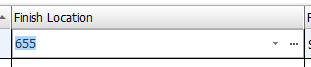
I have added the visualization on an ID Field with the caption of the Name of the record <see above>. For Example, ID= 1, Name = Apples. So if you add the ID to a Form or RP then it shows a Drop Down. When Clicked the Drop down shows a value of "Apples". All that works well. <see image below>
My problem is when I add that field to a List. The field displays the ID instead of the Caption within the list. If I click the dropdown it shows "Apples", but it displays the ID as the value.
Form:
http://www.sherrilldealers.com/form.png
List:
http://www.sherrilldealers.com/list.png
I feel like there is a property or something I'm missing. Thanks for your help in advance.
Best,
Chad
Sherrill Furniture Company
Re: Picklist Visualization
Posted: Thu Nov 12, 2020 3:56 am
by atostaine
IIRC dropdowns can only have one column visible. Use a work field in the list and concat your values into it.
Add the other values you need but the work field is the only one visible.
Re: Picklist Visualization
Posted: Thu Nov 12, 2020 4:36 am
by lawingo
Hey Art,
I guess that's probably my point. The Dynamic Picklist has a Caption Property and a Value Property. The Caption is the Visible column when placed on a Form, the Value is the visible column when dropped into a Grid/List. I would expect the Caption to always be the visible column.
Thanks for the help.
Chad
Re: Picklist Visualization
Posted: Thu Dec 03, 2020 7:13 am
by Dino
Hi Chad,
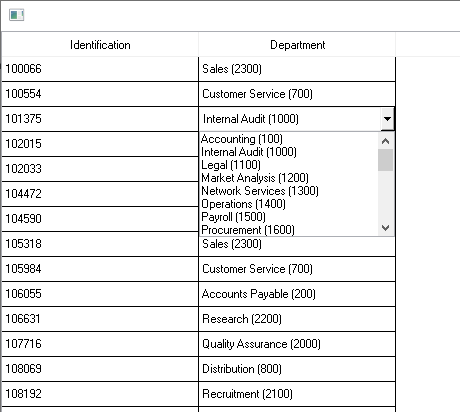
Check the example form xDemoFieldVisGridMaintenance
it works fine with a Grid. Are you trying to use a List instead of a Grid?
Code: Select all
Function Options(*DIRECT)
Begin_Com Role(*EXTENDS #PRIM_FORM) Clientheight(447) Clientwidth(1007) Height(486) Layoutmanager(#Layout) Left(128) Top(210) Width(1023) Theme(#xDemoTheme)

* Data Entry grid using reusable parts for entry

Define_Com Class(#PRIM_TBLO) Name(#Layout)
Define_Com Class(#PRIM_TBLO.Row) Name(#Row_1) Displayposition(1) Parent(#Layout)
Define_Com Class(#PRIM_TBLO.Column) Name(#Column_1) Displayposition(1) Parent(#Layout)

Define_Com Class(#PRIM_GRID) Name(#Grid) Captionnoblanklines(True) Columnbuttonheight(25) Columnscroll(False) Componentversion(1) Displayposition(1) Height(447) Left(0) Parent(#COM_OWNER) Rowheight(25) Showselection(True) Showselectionhilight(False) Showsortarrow(True) Tabposition(1) Top(0) Width(1007)
Define_Com Class(#PRIM_TBLO.Item) Name(#TBLO_1) Column(#Column_1) Manage(#Grid) Parent(#Layout) Row(#Row_1)
Define_Com Class(#PRIM_GDCL) Name(#GDCL_1) Displayposition(1) Parent(#Grid) Source(#xEmployeeIdentification)

Define_Com Class(#PRIM_GDCL) Name(#DepartmentColumn) Displayposition(2) Parent(#Grid) Readonly(False) Source(#xDepartmentCode) Usepicklist(True)


Evtroutine Handling(#com_owner.CreateInstance)

* Fill the grid with data
Select Fields(#Grid) From_File(xEmployee)

Add_Entry To_List(#Grid)

Endselect

Endroutine

End_Com
This one is using the picklist for Department that returns the department code but shows the description concatenated with the id:
Code: Select all
Function Options(*DIRECT)

* Uses the iDynamicPicklist interface to support use as a field visualization
Begin_Com Role(*EXTENDS #PRIM_objt *implements #Prim_dc.IDynamicPicklist)

* Field Visualization - Departments dynamic picklist

Mthroutine Name(Load) Options(*REDEFINE)

* Always clear the list when Loading
#Picklist.RemoveAll

* Read the departments table and add a picklist for each record
Select Fields(#xDepartmentCode #xDepartmentDescription) From_File(xDepartments)

* Add the item using the department code and description.  First item will become the default item
#Picklist.Add( #xDepartmentCode ("&1 (&2)").Substitute( #xDepartmentDescription #xDepartmentCode ) #Picklist.Items.IsEmpty )

Endselect

Endroutine

End_Com
- picklist.png (7.55 KiB) Viewed 9943 times