Hi Sotiris,
Are you going to create them using Visual LANSA or are you working directly in a green screen with an old green screen development license?
What version of LANSA are you currently using?
You can create them in Visual LANSA, and in the past you were able to create them also directly in the green screen.
They are called Process (like menus) and Functions (the actual options/programs), they have to be rdml (uncheck "Enabled for rdmlx" when creating the functions if you want to be able to display a green screen), the functions belong to a process,
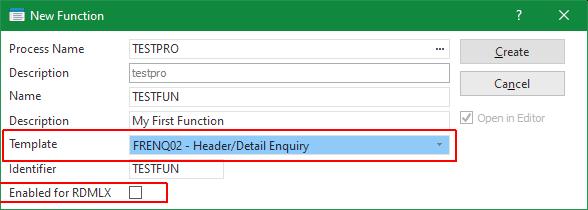
- functions.jpg (18.18 KiB) Viewed 5393 times
they have limitations in the data types that can be used while coding in RDML (Alpha, Signed, Decimal or Packed only), and uses a few other old commands like DISPLAY, REQUEST, POP_UP (same as DISPLAY just as a window), SET_MODE, IF_KEY, etc. the tables you can use need to be also "rdml" tables, meaning, using only the data types indicated before and when created in the repository unchecked the "Enabled for rdmlx", and several details more.
A good set of examples of functions code can still be found under PROCESS starting with PSL in the LANSA Repository, those are examples of how to request information, maintain, use popups, prompts, create reports, etc.
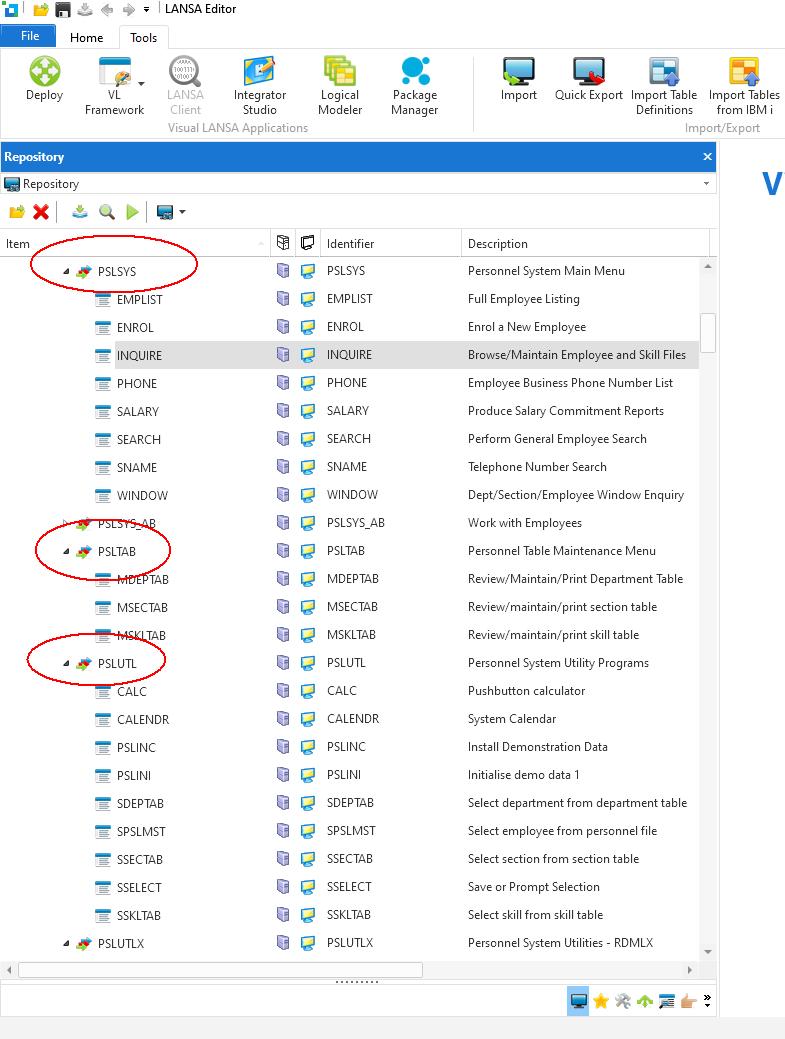
- functions2.jpg (107.46 KiB) Viewed 5393 times
You can find detailed information on DISPLAY, REQUEST, POP_UP, SET_MODE, IF_KEY and other commands under the technical guide in docs.lansa.com with examples how to use:
https://docs.lansa.com/15/en/lansa015/i ... play_e.htm
https://docs.lansa.com/15/en/lansa015/i ... mode_e.htm
Note that for creating of functions, you can use the old templates still available (use the ones starting with FR for full programs, BB for subsets of code)
Those commands, DISPLAY, REQUEST, POPUP are very powerful commands. Basically you tell them what fields to request or display, and they will automatically build the screen, using the descriptions/labels in the repository, they can have functions keys activated that allow you to change mode (like F21=Change and the mode goes from display to change), handle the F4=Prompt automatically, the F1, and if a next INSERT/UPDATE/DELETE command reports a validation error, it is reported automatically back to the screen, which will highlight the fields with error and show you the messages. nowadays... more code is needed to create the same kind of things when working in multilayer web applications...
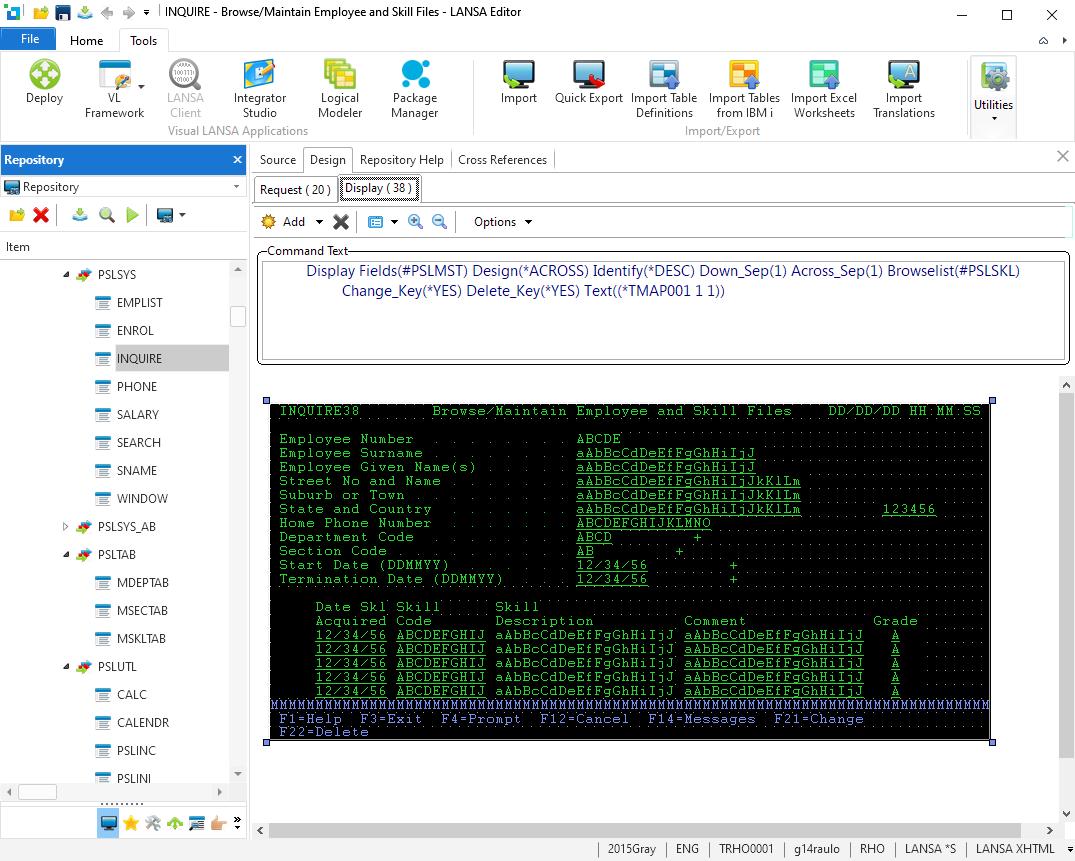
- functions3.jpg (160.76 KiB) Viewed 5393 times