Page 1 of 1
VL Web, menu option highlight
Posted: Sun Oct 02, 2022 11:47 pm
by adale
Can someone point me to the documentation, or the feature/parm, which sets or controls when a menu option is active (highlight).
Some menu options when you click on them, do not highlight or show that they were the menu option that was clicked. Others show with a slight darker background when clicked?
Re: VL Web, menu option highlight
Posted: Tue Oct 04, 2022 6:33 am
by Dino
Hi Arlyn
You control that in the Style toolbar, just select the menu item option, then go to Styles and indicate what color you want for each of the "status".... Style, MouseOver, Focus, Selected...
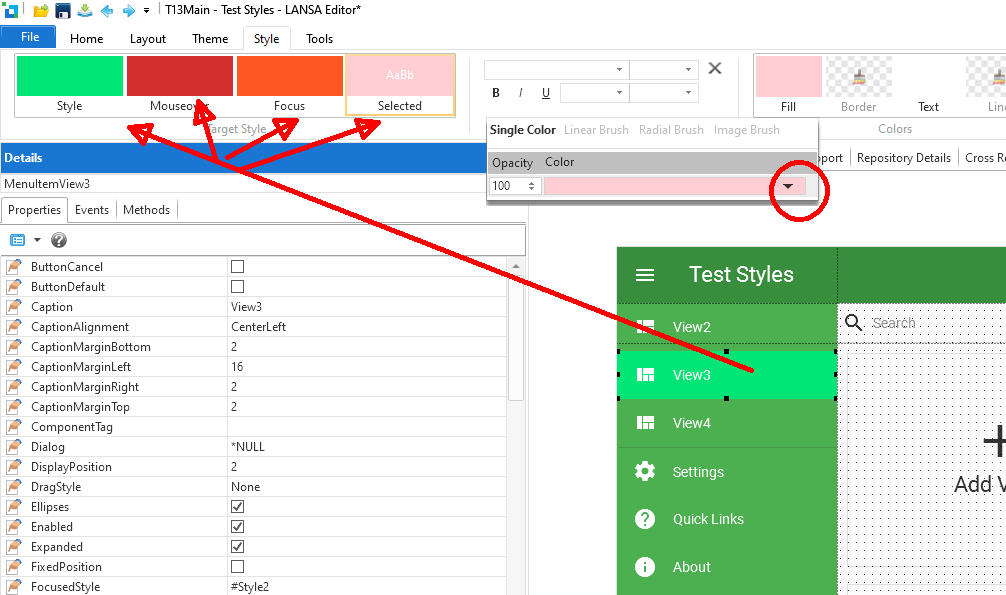
- styles01.png (57.09 KiB) Viewed 17325 times
that would reflect in the code adding lines like these:
Code: Select all
Define_Com Class(#PRIM_VS.Style) Name(#Style1) BackgroundBrush(#Brush1) ForegroundBrush(#Brush2)
Define_Com Class(#PRIM_VS.SolidBrush) Name(#Brush2) Color(255:255:255)
Define_Com Class(#PRIM_VS.SolidBrush) Name(#Brush1) Color(ThemeErrorLight)

Define_Com Class(#PRIM_VS.Style) Name(#Style2) BackgroundBrush(#Brush3)
Define_Com Class(#PRIM_VS.SolidBrush) Name(#Brush3) Color(ThemeAccentMedium)

Define_Com Class(#PRIM_VS.Style) Name(#Style3) BackgroundBrush(#Brush4)
Define_Com Class(#PRIM_VS.SolidBrush) Name(#Brush4) Color(ThemeErrorDark)

Define_Com Class(#PRIM_VS.Style) Name(#Style4) BackgroundBrush(#Brush5)
Define_Com Class(#PRIM_VS.SolidBrush) Name(#Brush5) Color(ThemeA400)
and your menu item will use them like this:
Code: Select all
Define_Com Class(#PRIM_MD.MenuItem) Name(#MenuItemView3) Caption('View3') DisplayPosition(2) Left(0) Parent(#Menu) TabPosition(2) TabStop(False) Top(48) Width(220) Height(48) Icon('view_quilt') Link('/View3') SelectedStyle(#Style1) FocusedStyle(#Style2) MouseOverStyle(#Style3) Style(#Style4)
Re: VL Web, menu option highlight
Posted: Tue Oct 04, 2022 9:43 pm
by adale
Dino,
Excellent example of how to apply Style effects to the menu.
My question in specific is how/where/why Lansa is applying a shadow or some style effect on some menu options, and not others, when in the source, there is none of the styles coded?
In my test example I presented, the menu option "TestTimer" shows darker than other menu options.
The definition for this menu is:
Code: Select all
DEFINE_COM Class(#PRIM_MD.MenuItem) Name(#MenuItemTestTimer) Caption('TestTimer') Displayposition(5) Height(48) Icon('view_quilt') Left(0) Parent(#Menu) Tabposition(9) Top(192) Width(220) Link('/TestTimer')
You can see this here:
https://simplifywithi.net/dcxpgmlib/sip/ls2main/Home
The same result in Chrome, Firefox, and MS Edge, so I don't think it is something browser specific.
Why does the shadow ( or active style effect, I am not sure) show on the TestTimer menu option, and none of the first three. Then if you let the browser set for a bit, the style effect on TestTimer will go away?
I can email you a QE of this test web page if that would help.
Re: VL Web, menu option highlight
Posted: Tue Oct 25, 2022 12:27 pm
by BrendanB
Arlyn,
what you are describing (i think) is the 'selected' menu item.
a #Prim_MD.MenuItem can have a 'Link', 'View', 'TabSheet' or 'Dialog'.
In the case of a 'view':
when the 'View' is SHOWN (ie. it is the ActiveView of a ViewContainer on the screen) then the RUNTIME will *automatically* set the menuItem to selected (the 'highlighting' you see is the 'default' selected style if you have not set one.
It works in a similar manner for Tabsheet and Dialog and Link... (ie, if your 'ActiveRoute.Path is a match for the 'link' then it should do the same.
I have found that if you are using 'parented' items, this may not work (eg. '/Item/{itemNumber}' doesnt seem to work.
Using the settings that Dino showed you can ensure that 'Selected' has a background color that will make it OBVIOUS what item is set to selected.
The solution is to use a couple of Timers: (required to ensure the runtime has 'finished' whatever it is doing *before* you set 'selected menu item'.)
Code: Select all
* Place these in your page..
Define_Com Class(#PRIM_TIMR) Name(#MenuTimer) Interval(1)
Define_Com Class(#PRIM_TIMR) Name(#ViewTimer) Interval(1)

Evtroutine Handling(#Router.Match) Allow(#Allow) Route(#Route) Path(#Path) Redirect(#Redirect)

* Whatever your normal code is

#MenuTimer.Start

Endroutine

Evtroutine Handling(#ViewContainer.ActiveViewChanged)

If (#ViewContainer.ActiveView *Is *Null)

Return

Endif

#ViewTimer.Start
* #COM_SELF.HandleMenuChange

Endroutine

Evtroutine Handling(#MenuTimer.Tick)

#MenuTimer.Stop

If (#ViewTimer.IsStarted.IsFalse)

#COM_SELF.HandleMenuChange

Endif

Endroutine

Evtroutine Handling(#ViewTimer.Tick)

#ViewTimer.Stop

If (#MenuTimer.IsStarted.IsFalse)

#COM_SELF.HandleMenuChange

Endif

Endroutine

Mthroutine Name(HandleMenuChange)

* Cannot Set if no ActivePath or no ActiveView
If ((#SYS_WEB.Routing.ActivePath = '') *OrIf (#ViewContainer.ActiveView *Is *Null))

Return

Endif

* Ensure no  MenuItem is 'selected'
For Each(#Entry) In(#Menu.ComponentControls) Operation(*INSTANCE_OF #PRIM_MD.MenuItem)

#Entry.View <= *Null

Endfor

* Set required MenuItem to selected
For Each(#Entry) In(#Menu.ComponentControls) Operation(*INSTANCE_OF #PRIM_MD.MenuItem)

Continue If(#SYS_WEB.Routing.ActivePath.LowerCase.Contains( #Entry.Link.LowerCase ).IsFalse)

Continue If(#Entry.View *IsEqualTo #ViewContainer.ActiveView)

#Entry.View <= #ViewContainer.ActiveView
#Entry.SetFocus
Leave

Endfor

Endroutine
Re: VL Web, menu option highlight
Posted: Wed Oct 26, 2022 1:43 am
by adale
Here is what I have found.
This whole issue of what menu option has "focus" is a result of the "TabStop" parm.
When you build an app from the wizard, the initial wizard built menu items are set as = TabStop(False), but when you add new menu items, the TabStop default setting is True (checked). If TabStop is set to False, then the menu item will not "get Focus", or show as active (darker color in the *default case).
So if you click on a menu item that is TabStop(False) it will not get Focus, and the previous selected menu item that was TabStop(True) will retain the control Focus (looks as active) setting.
If you set all menu items to TabStop(True), checked, then the focus will follow the tab key strokes or your clicks.