Page 1 of 1
Controlling Size options with list on webpage
Posted: Mon Mar 19, 2018 3:30 pm
by John
Hi,
I've experimented with the various Size options when displaying a list in a web page.
What I am trying to achieve?
- I don't want the user to have to scroll the PAGE, but I am happy for them to scroll the list WITHIN the page.
- When Size: Content Height is used, a full list simply runs off the bottom of the page and the user would have to scroll the page down to see it, something I wanted to avoid.
- I want it to stay on the page and have scroll bars if the list was too long to stay on the page.
What is the best way using Size to achieve this please?
Re: Controlling Size options with list on webpage
Posted: Tue Mar 20, 2018 12:55 am
by jyoung
I would put the list in another panel. Then you can enable vertical scrolling on that panel, set the sizing of the List to ContentHeightFitToWidth and the set the panel to FitToWidth.
I also turned off vertical scrolling on the page itself.
Code: Select all
begin_com role(*EXTENDS #PRIM_WEB) layoutmanager(#Layout1) verticalscroll(False)
define_com class(#PRIM_VS.Style) name(#Style1) borderbottom(1) borderbrush(#Brush1) borderleft(1) borderright(1) bordertop(1)
define_com class(#PRIM_VS.SolidBrush) name(#Brush1) color(69:0:255)

define_com class(#PRIM_VS.Style) name(#Style2) borderbottom(1) borderbrush(#Brush2) borderleft(1) borderright(1) bordertop(1)
define_com class(#PRIM_VS.SolidBrush) name(#Brush2) color(255:37:1)

define_com class(#PRIM_TBLO) name(#Layout1)
define_com class(#PRIM_TBLO.Row) name(#LayoutRow1) displayposition(1) parent(#Layout1)
define_com class(#PRIM_TBLO.Column) name(#LayoutColumn1) displayposition(1) parent(#Layout1)
define_com class(#PRIM_TBLO.Item) name(#LayoutItem1) alignment(TopLeft) column(#LayoutColumn1) manage(#Panel1) parent(#Layout1) row(#LayoutRow1) sizing(FitToWidth) flow(Down)
define_com class(#PRIM_TBLO.Item) name(#LayoutItem3) alignment(TopLeft) column(#LayoutColumn1) manage(#List1) parent(#Layout1) row(#LayoutRow1) sizing(ContentHeightFitToWidth) flow(Down)
define_com class(#PRIM_TBLO.Item) name(#LayoutItem4) alignment(TopLeft) column(#LayoutColumn1) manage(#Panel2) parent(#Layout1) row(#LayoutRow1) flow(Down) sizing(FitToWidth)

define_com class(#PRIM_TBLO) name(#Layout2)
define_com class(#PRIM_TBLO.Row) name(#LayoutRow2) displayposition(1) parent(#Layout2)
define_com class(#PRIM_TBLO.Column) name(#LayoutColumn2) displayposition(1) parent(#Layout2)
define_com class(#PRIM_TBLO.Item) name(#LayoutItem2) alignment(CenterLeft) column(#LayoutColumn2) manage(#Label1) parent(#Layout2) row(#LayoutRow2) sizing(None) marginleft(10)

define_com class(#PRIM_TBLO) name(#Layout3)
define_com class(#PRIM_TBLO.Row) name(#LayoutRow3) displayposition(1) parent(#Layout3)
define_com class(#PRIM_TBLO.Column) name(#LayoutColumn3) displayposition(1) parent(#Layout3)
define_com class(#PRIM_TBLO.Item) name(#LayoutItem5) alignment(TopLeft) column(#LayoutColumn3) manage(#List1) parent(#Layout3) row(#LayoutRow3) sizing(ContentHeightFitToWidth)

define_com class(#PRIM_LIST) name(#List1) displayposition(1) left(0) parent(#Panel2) tabposition(1) top(0) height(165) width(1198) rowheight(20)
define_com class(#PRIM_LIST.Number) name(#ColumnSTD_NUM1) columnwidth(100) displayposition(1) increment(1) parent(#List1) source(#STD_NUM) wrap(False)
define_com class(#PRIM_LIST.String) name(#ColumnSTD_STRNG1) columnwidth(1) displayposition(2) parent(#List1) source(#STD_STRNG) columnunits(Proportion)
define_com class(#PRIM_PANL) name(#Panel1) displayposition(1) left(0) parent(#COM_OWNER) tabposition(1) tabstop(False) top(0) width(1200) style(#Style1) height(100) layoutmanager(#Layout2)
define_com class(#PRIM_LABL) name(#Label1) caption('Header Panel') displayposition(1) ellipses(Word) height(25) parent(#Panel1) tabposition(1) tabstop(False) top(37) verticalalignment(Center) width(120)
define_com class(#PRIM_PANL) name(#Panel2) displayposition(2) left(0) parent(#COM_OWNER) tabposition(2) tabstop(False) top(100) style(#Style2) height(250) width(1200) layoutmanager(#Layout3) verticalscroll(True)

evtroutine handling(#Com_owner.Initialize)
define_com class(#PRIM_NMBR) name(#count)

#count := 1

dountil cond(#count > 100)
#STD_NUM := #count
#STD_STRNG := "Some String"
add_entry to_list(#List1)
#count += 1
enduntil
endroutine

end_com
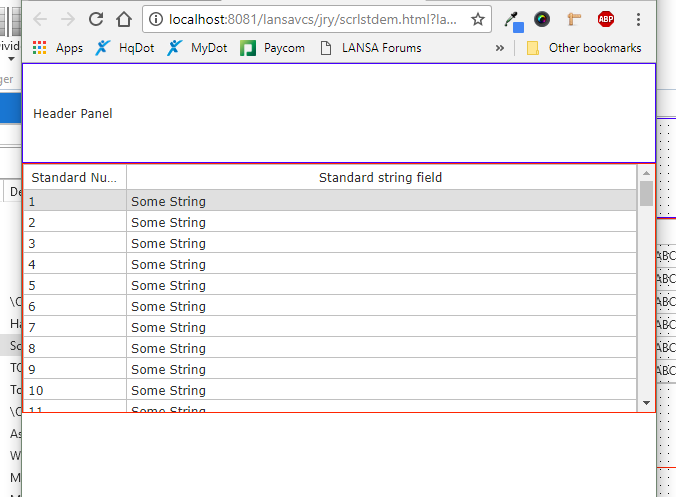
- Capture.PNG (26.83 KiB) Viewed 24753 times
The difficultly may come in controlling the size of the containing panel. Being set FitToWidth, you are essentially fixing the height with may not be what you want.
There may be a better way to do it.
Hope this helps,
Joe
Re: Controlling Size options with list on webpage
Posted: Tue Mar 20, 2018 4:53 pm
by Kingston
Thanks Joe, that worked great.
I was expecting that Content Height would respect the layout row boundaries. We had Content Height set for our list so that we didn't have all the blank rows showing but once it got too long it ran off the bottom of the screen, way past the next row. Enclosing it in a Panel kept it contained and allowing Vertical Scroll on the Panel allowed us to scroll. Very clever.
I guess I shouldn't have expected the layout to contain something set to "Content Height" as obviously that's the purpose of "Fit to Height". But "Fit to Height" also displayed empty rows all the way to the bottom of the row and I didn't want that
Anyway, thanks for the help
Re: Controlling Size options with list on webpage
Posted: Tue Mar 20, 2018 5:35 pm
by Kingston
Oh except your list header scrolls off the page. I guess that is why you included a separate header outside the panel.
Re: Controlling Size options with list on webpage
Posted: Tue Mar 20, 2018 11:36 pm
by jyoung
I did not think about the list header. I was trying to indicate multple panels are at play. I thought there was a way to fix the header but I can't remember what it is.
Re: Controlling Size options with list on webpage
Posted: Wed Mar 21, 2018 9:28 am
by Kingston
It may be I'm overdoing this.
We can achieve the look we want without all this mucking around IF we don't apply a non white ThemeDrawStyle for every second column. If we leave each column white, then the native way the List box works looks fine using even Fit Both. But when we apply a Alternate Style for each column (so that columns alternate white and blue) then the blue columns continue down below that part of the list that has data in it. And I was wanting to not have that happen when the list was not full.
So perhaps there is a way to not have the ThemeDrawStyle apply when that row has no data? Fill that part of the layout with a list but don't apply that Column's ThemeDrawStyle below the area that has list data in it. Does that sound like something that might be possible?
Re: Controlling Size options with list on webpage
Posted: Wed Mar 21, 2018 9:44 am
by Kingston
What I want most of all though is "Control Vertical Size by Content Up to a Maximum of the Size of the Row that Contains the List then Contain it Within the Row and Display Scroll Bars".

Re: Controlling Size options with list on webpage
Posted: Thu Mar 22, 2018 7:04 am
by atostaine
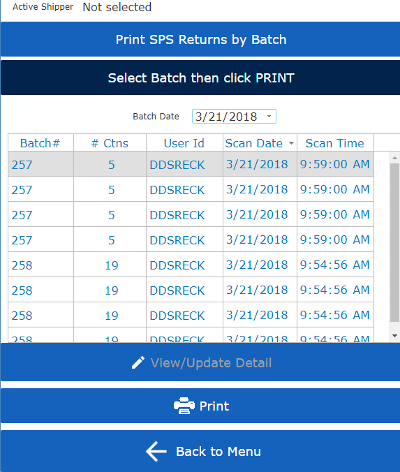
I'm not in front of my machine to confirm, but I think if you set the list to fit to both, it would show a scroll bar.
Here is a screen print....
- screen_list.png (53.84 KiB) Viewed 24682 times
Re: Controlling Size options with list on webpage
Posted: Thu Mar 22, 2018 9:00 am
by Kingston
Thanks Atostaine, Fit to Both does show a scroll bar but when there aren't enough records to fill the entire row of the Layout that the List is in, the List displays the Alternate Column styling below the data filled rows and it shows a border around the entire list including the empty space. I wanted to not show that styling when there were no records in that area. Basically have it work like Fit to Content Height but once it had enough records to get to the bottom of the Layout Row, stop there and add scroll bars, so that the List never went below the bottom of the webpage.
What we have now managed to do is control the Alternate Column Styling programmatically so that it sets the styling only on those records that have data. That still shows an empty border but we can live with it (you can turn Border off but then you end up with Rows that have no line on the left of the first column.)